How to Actually Install and Customize a Website Template
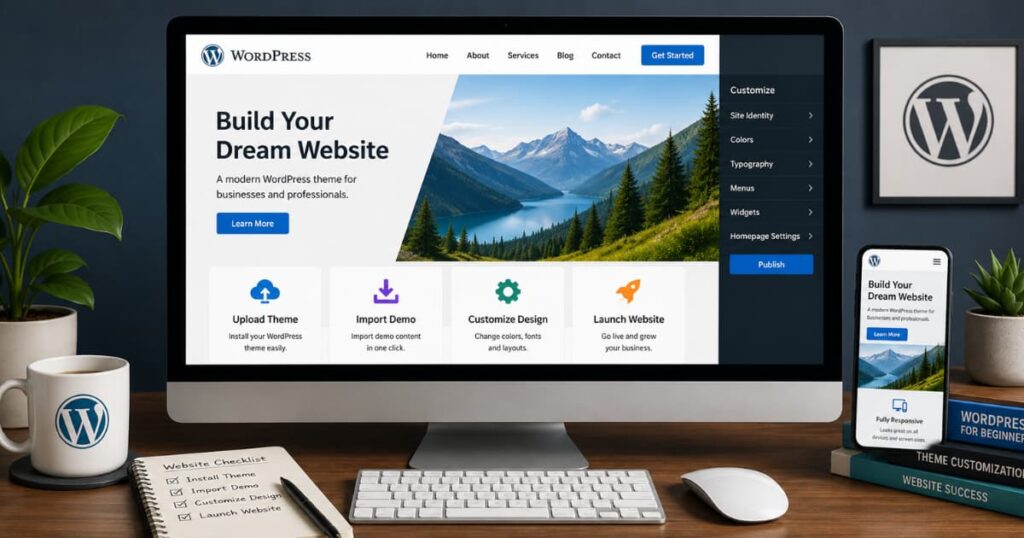
You found a Website template that looks perfect. Then you install it and realize the demo site and your actual website look nothing alike.
Now you are dealing with:
- missing layouts
- broken menus
- plugins
- ZIP files
- demo imports that fail halfway through
This is where most beginners get stuck. The problem is not usually WordPress itself. The real issue is that WordPress runs on several connected systems at the same time:
- themes
- template kits
- plugins
- page builders
- hosting
- caching
Most tutorials explain these things separately. Meanwhile, beginners experience them all at once. That creates confusion fast.
Before going further, it is important to understand one thing: A WordPress theme is not the same thing as a template kit.
The theme controls the website’s foundation:
- layout
- styling
- responsiveness
- navigation
Meanwhile, template kits usually work through builders like Elementor and control the actual page designs.
That distinction matters because many installation problems happen when people expect one system to behave like the other.
This guide is built to solve that confusion directly. We are going step-by-step through:
- installing WordPress themes
- uploading premium templates
- importing demo content
- customizing layouts properly
- fixing common installation problems
- preparing the website to go live
More importantly, you will understand why things break when they do. Because most WordPress problems are not random.
They usually come from:
- missing plugins
- incompatible systems
- weak hosting
- caching conflicts
- misunderstanding how WordPress components interact
Once you understand the structure underneath, WordPress becomes much easier to control instead of feeling like random technical chaos.
Key Takeaways
- Understand the difference between WordPress themes and template kits before installing anything
- Learn the three main ways to install WordPress templates properly
- Avoid common installation mistakes that break layouts and demo imports
- Customize your WordPress template without damaging responsiveness or performance
- Configure the essential WordPress settings most beginners forget
- Learn how themes, plugins, hosting, and page builders interact underneath
- Prepare your website properly before taking it live
Before You Begin: What You Actually Need First
A lot of WordPress installation problems start before the theme is even uploaded.
Most beginners assume the issue is:
- the template
- WordPress itself
- Elementor
- hosting
Meanwhile, the real problem is usually incomplete setup underneath. WordPress works like a connected system.
If one part is unstable:
- themes break
- imports fail
- layouts shift
- plugins conflict
That is why preparing properly matters before installing anything.
Reasons why You Needs A website Template
Hosting and Domain Must Already Be Ready
Before installing a WordPress template, you should already have:
- a hosting account
- a connected domain name
- WordPress installed properly
This sounds obvious, but many beginners buy templates before the actual website infrastructure exists. That creates unnecessary confusion later. Your hosting controls:
- website speed
- server limits
- demo import stability
- plugin performance
Cheap or poorly configured hosting often causes:
- timeout errors
- failed imports
- broken installations
The template usually gets blamed for problems that actually start at server level.
Understand WordPress.org vs WordPress.com
This confuses many beginners early on. WordPress.org gives full control:
- themes
- plugins
- custom uploads
- page builders
Meanwhile, WordPress.com has restrictions depending on the plan you are using. A lot of people download premium templates only to realize their WordPress.com plan does not allow custom theme uploads.
That frustration happens constantly. If you plan to use:
- premium themes
- Elementor
- advanced plugins
- WooCommerce …self-hosted WordPress.org is usually the safer route.
Make Sure You Have Admin Access
Before installing anything, confirm you can access:
- the WordPress dashboard
- Appearance settings
- plugin installation
- theme uploads
You need administrator permissions. Without admin access:
- uploads fail
- customization options disappear
- plugin installations become restricted
This becomes especially important when working on client websites or managed hosting setups.
Backup the Website First
If you are changing themes on an existing website, backup the site before making major changes. This is one of those things beginners skip until something breaks. Theme changes can affect:
- layouts
- menus
- widgets
- page builder settings
Sometimes entire sections disappear after activation because the old theme and new theme structure differently.
A backup gives you a recovery point instead of forcing a rebuild.
Recommended Tools That Make WordPress Easier
You do not need advanced developer tools initially. However, a few tools make troubleshooting much easier:
- FileZilla for FTP access
- your hosting file manager
- staging environments
- backup plugins
A staging site matters more than many beginners realize. It lets you:
- test themes
- import demos
- experiment safely
…without damaging the live website. That changes how confidently you can customize WordPress later.
Why This Preparation Stage Matters
Most WordPress problems are not random technical failures. Usually, they come from systems interacting badly underneath:
- weak hosting
- missing permissions
- incompatible plugins
- missing backups
- server limitations
Once the foundation is stable, theme installation becomes much simpler. That is the part many beginner tutorials skip.
Finding and Choosing the Right WordPress Theme or Template
Most beginners choose WordPress templates emotionally first and operationally later.
That usually creates problems.
A demo site can look impressive while hiding:
- poor performance
- outdated code
- weak mobile responsiveness
- plugin conflicts
- abandoned support
The internet trained people to judge themes visually.
Meanwhile, the long-term experience usually depends more on:
- maintenance
- compatibility
- stability
- update frequency
That is the real thing happening underneath WordPress theme selection.
A theme is not just design. It becomes part of your website’s infrastructure.
Free WordPress Themes
The safest place to start with free themes is the official WordPress theme directory.
Themes listed there go through review checks for:
- coding standards
- security
- compatibility
That does not mean every free theme is excellent. However, it reduces the chances of downloading unstable or abandoned templates from random websites.
Free themes work well for:
- blogs
- starter business websites
- portfolios
- learning WordPress
The limitation usually appears later when people want:
- advanced customization
- premium layouts
- ecommerce integrations
- more design flexibility
Premium WordPress Themes
Premium themes usually include:
- more customization options
- demo imports
- premium support
- advanced integrations
- page builder compatibility
Popular premium theme sources include:
This is where many beginners get overwhelmed.
Some premium themes try to do everything:
- animations
- sliders
- mega menus
- dozens of demos
- heavy visual effects
Meanwhile, simpler themes often perform better long term because they create less technical friction underneath.
Template Kits and Starter Templates
Template kits are slightly different from full themes.
They are usually pre-designed page systems built for page builders like Elementor.
For example:
- homepage layouts
- about pages
- contact pages
- landing pages
Popular sources include:
Template kits became popular because they reduce setup time heavily.
Instead of designing pages manually, you import complete layouts and replace:
- text
- branding
- images
- colors
However, template kits depend heavily on:
- compatible themes
- required plugins
- correct builder versions
That is why some imports fail when the infrastructure underneath is incomplete.
What to Check Before Downloading Any Theme
This is the part many beginners skip.
Before installing any WordPress theme, check:
Last Update Date
Themes that have not been updated for long periods often create:
- compatibility problems
- security risks
- plugin conflicts
WordPress changes constantly underneath.
Old themes slowly break over time.
WordPress Compatibility
Always check whether the theme supports your current WordPress version.
Many layout issues happen because themes were built for older environments.
Reviews and Support Quality
Reviews matter less for design and more for:
- bug fixes
- developer responsiveness
- update reliability
A beautiful theme with poor support becomes stressful quickly.
Demo Import Availability
Demo imports save beginners huge amounts of time.
Instead of rebuilding layouts manually, demo content recreates the structure shown in previews.
That matters because many beginners expect their website to automatically look like the demo immediately after activation.
Usually it does not.
Without demo imports, you often start with mostly blank layouts.
The Hidden Reality Behind “Perfect” Theme Demos
Most demo websites are highly optimized environments.
They include:
- professional photography
- polished typography
- optimized layouts
- perfect spacing
Meanwhile, beginners upload:
- oversized images
- inconsistent branding
- too much text
- random plugins
Then wonder why the website feels different. The theme itself is only part of the result. The real quality comes from:
- structure
- consistency
- responsiveness
- content clarity
- maintenance discipline
That is why choosing stable infrastructure matters more than chasing flashy design trends.
Method 1: Installing a Theme from the WordPress Directory
This is the simplest way to install a WordPress theme.
It is also the safest starting point for most beginners because themes from the official WordPress directory already pass basic review checks for:
- compatibility
- coding standards
- security
However, this is also where many people expect too much too early.
A lot of beginners install a theme and immediately expect the website to look exactly like the demo preview.
Usually, it does not.
Most themes only install the structure first.
The demo appearance often requires:
- demo imports
- plugins
- homepage setup
- menus
- widgets
That confusion is one of the biggest reasons beginners think they “broke WordPress.”
Step 1: Open the WordPress Theme Installer
Inside your WordPress dashboard:
- go to Appearance
- click Themes
- click Add New
This opens the WordPress theme library.
From here you can:
- search themes directly
- browse featured themes
- explore popular categories
The system itself is simple.
The harder part is understanding which themes are lightweight and maintainable long term.
Step 2: Search for the Theme
Use the search bar to find:
- the exact theme name
- or browse by category
For example:
- blogs
- ecommerce
- portfolios
- business websites
Do not choose themes only because they look visually impressive in screenshots.
Many visually overloaded themes create:
- slower websites
- plugin conflicts
- poor mobile responsiveness
Cleaner themes usually age better operationally.
Step 3: Click Install
Once you find the theme:
- click Install
- wait for WordPress to download it
- then click Activate
At this stage, the theme becomes active on your website.
This is usually the moment beginners panic because:
- the homepage looks incomplete
- menus disappear
- layouts look empty
That is normal initially.
Most themes still require setup afterward.
Step 4: Run the Theme Setup Wizard
Some themes automatically launch a setup wizard after activation.
This usually helps configure:
- starter templates
- required plugins
- homepage layouts
- demo content
Do not skip this step too quickly.
The setup wizard often handles much of the structure beginners struggle to build manually later.
For example:
many modern themes now recommend installing:
- Elementor
- WooCommerce
- starter template plugins
- SEO plugins
These systems work together underneath the design.
Without them, the theme may appear incomplete.
What Beginners Usually Misunderstand Here
Installing the theme does not build the website automatically.
It installs the framework.
The demo design usually depends on:
- imported layouts
- placeholder images
- configured menus
- installed plugins
- homepage assignments
That distinction matters because many people think the installation “failed” when the real issue is simply incomplete setup.
Common Problems During Theme Installation
The Theme Looks Nothing Like the Demo
This usually happens because:
- demo content was not imported
- required plugins are missing
- homepage settings are incomplete
Menus Disappeared
Themes often use different menu locations.
You may need to:
- recreate menus
- reassign navigation positions
Layout Looks Broken
This commonly happens when:
- page builder plugins are missing
- caching interferes
- old plugins conflict with the new theme
Most WordPress theme problems are not random.
They usually come from systems interacting underneath without proper configuration.
That becomes easier to manage once you stop treating themes like isolated files and start seeing WordPress as a connected infrastructure system.
Method 2: Uploading a Premium WordPress Theme (ZIP File)
This is the method most people use after buying a premium WordPress theme from:
- ThemeForest
- Elegant Themes
- Astra Pro
- Kadence
- independent theme developers
It sounds simple:
download the theme, upload the ZIP file, activate it.
Then WordPress throws an error message.
This is where many beginners get stuck because premium theme downloads often include multiple files inside:
- documentation
- licenses
- demo content
- plugins
- the actual theme ZIP
People upload the wrong file constantly.
The problem is usually not WordPress.
It is understanding what the actual installable theme file is.
Step 1: Download the Correct Theme Package
After purchasing the theme:
- download the full package
- extract it on your computer if necessary
- locate the actual installable theme ZIP
This matters because many premium marketplaces package themes inside larger folders.
For example:
you may download:
- documentation PDFs
- child themes
- plugin folders
- licensing files
…but WordPress only needs the actual theme ZIP.
Usually something like:
- astra.zip
- kadence.zip
- theme-name.zip
Do not upload the entire package folder directly.
That is one of the most common beginner mistakes.
Step 2: Go to Upload Theme
Inside WordPress:
- go to Appearance
- click Themes
- click Add New
- click Upload Theme
This opens the upload interface.
From here:
- choose the ZIP file
- click Install Now
Do not unzip the theme before uploading through this method.
WordPress expects the compressed ZIP format.
Step 3: Install and Activate the Theme
Once uploaded:
- click Install Now
- wait for WordPress to process the upload
- click Activate
The theme is now installed.
However, this still does not fully recreate the demo website yet.
At this stage, most premium themes still require:
- plugin installation
- demo imports
- starter templates
- homepage configuration
That setup usually happens afterward.
The Most Common Error: “The Package Could Not Be Installed”
This error scares beginners constantly.
Usually the cause is simple.
Wrong ZIP File Uploaded
People often upload:
- the full marketplace download package
- documentation folders
- plugin archives
…instead of the actual installable theme ZIP.
WordPress cannot process those correctly.
Nested ZIP Files
Sometimes the real theme ZIP is inside another ZIP folder.
For example:
- downloaded-package.zip
- theme-name.zip
You need the inner theme ZIP.
Not the outer package.
Wrong File Type Entirely
Sometimes people accidentally upload:
- plugins
- template kits
- PDFs
- XML demo files
…through the theme uploader.
WordPress rejects those because they are not theme packages.
Child Themes: What Beginners Should Know
Many premium themes include:
- parent themes
- child themes
This confuses people early on.
The parent theme controls the main functionality.
The child theme protects customizations during updates.
If you plan to heavily customize:
- code
- templates
- functions
…using the child theme becomes important later.
However, beginners often do not need to worry about child themes immediately unless they are editing theme code directly.
Why Premium Themes Sometimes Feel More Complicated
Premium themes usually include:
- more features
- advanced customization
- bundled plugins
- page builders
- dynamic layouts
That flexibility creates more moving parts underneath.
The tradeoff is important:
more flexibility often means:
- more maintenance
- more plugin dependencies
- more compatibility management
This is why simpler premium themes usually perform better long term than themes overloaded with:
- animations
- visual effects
- dozens of bundled systems
The goal is not installing the most powerful-looking theme.
It is installing a stable system you can realistically maintain without technical chaos later.
Method 3: Installing a WordPress Theme via FTP
Most beginners will never need this method initially.
However, FTP becomes important when:
- WordPress uploads fail
- hosting upload limits block large themes
- the dashboard becomes inaccessible
- theme installation breaks midway
This is basically the fallback system when the normal installer stops cooperating.
The reason this method matters is because WordPress itself is still built on a file structure underneath.
Themes are ultimately folders placed inside:/wp-content/themes/
The dashboard uploader simply automates that process visually.
FTP gives you direct access to the server itself.
That changes how much control you have when troubleshooting.
Step 1: Unzip the Theme File Locally
Before using FTP:
- download the theme ZIP
- extract it on your computer
Unlike the WordPress uploader method, FTP requires the actual uncompressed theme folder.
Inside the extracted folder you should see files like:
- style.css
- functions.php
- screenshot.png
If you still only see another ZIP file inside, you likely extracted the wrong package layer.
This happens constantly with premium themes.
Step 2: Connect to Your Website Using FTP
You now need an FTP client.
One of the most common beginner-friendly options is:
Inside FileZilla:
- enter your FTP credentials
- connect to your server
Most hosting providers provide:
- FTP hostname
- username
- password
- port number
Usually inside the hosting dashboard.
This step feels technical initially because you are now interacting directly with the website server rather than WordPress itself.
However, the process is mostly drag-and-drop once connected.
Step 3: Navigate to the Themes Folder
Inside your server:
- open
public_html - then
wp-content - then
themes
The full path usually becomes:
/public_html/wp-content/themes/
This folder contains every installed WordPress theme on the website.
For example:
- astra
- twentytwentyfour
- kadence
Each theme is simply its own folder.
This is useful to understand because many WordPress issues become less mysterious once you realize themes are ultimately just structured file systems underneath.
Step 4: Upload the Theme Folder
Now drag the extracted theme folder from your computer into the /themes/ directory.
Wait for the upload to finish completely.
Large premium themes can take several minutes depending on:
- hosting speed
- internet connection
- file size
Interrupting uploads midway sometimes creates incomplete theme installations.
That later causes:
- missing styles
- broken layouts
- activation errors
Step 5: Activate the Theme in WordPress
Once uploaded:
- return to your WordPress dashboard
- go to Appearance → Themes
The uploaded theme should now appear alongside the others.
Click:
- Activate
The theme is now installed.
From here, you still need to:
- install required plugins
- import demo content
- configure menus
- customize layouts
FTP only handles installation itself.
When FTP Usually Becomes Necessary
Many beginners assume FTP is “advanced developer territory.”
Usually, it becomes necessary because hosting limitations create friction underneath.
For example:
- low upload limits
- timeout errors
- broken dashboard uploads
- restricted hosting environments
This is especially common with heavier premium themes.
FTP bypasses many of those limitations because the upload happens directly to the server structure itself.
Common FTP Mistakes Beginners Make
Uploading the ZIP Instead of the Folder
FTP requires the extracted folder.
Not the compressed ZIP.
Uploading the Theme Into the Wrong Directory
The theme must go inside:/wp-content/themes/
Uploading elsewhere will not make WordPress detect it.
Uploading Nested Theme Folders
Sometimes beginners accidentally create:theme-folder/theme-folder/files
WordPress expects only one clean theme folder level.
Nested folders often trigger:
- missing stylesheet errors
- activation failures
Why Understanding FTP Helps Long Term
Even if you rarely use FTP later, understanding it changes how WordPress feels.
You stop seeing WordPress as a mysterious dashboard system.
Instead, you start seeing the actual structure underneath:
- themes
- plugins
- uploads
- configuration files
- server directories
That reduces panic when things break.
Because most WordPress problems are usually structural, not random.
Importing Demo Content: The Part Most Beginners Actually Want
This is usually the moment people expect the website to finally look like the demo preview they purchased.
Before importing demo content, most WordPress themes look:
- incomplete
- empty
- broken
- visually different from the screenshots
That happens because installing the theme only installs the framework.
The actual demo design usually depends on:
- imported pages
- layouts
- menus
- widgets
- placeholder images
- plugin settings
This is the layer that recreates the “finished website” appearance people see in previews.
However, this is also where many WordPress installations fail.
Not because demo imports are inherently complicated.
But because they depend on several systems working correctly underneath:
- plugins
- hosting limits
- PHP memory
- builder compatibility
- server performance
That infrastructure matters more than most beginners realize.
Where to Find the Demo Import Option
Different themes place demo imports in different areas.
Usually inside:
- the theme dashboard
- Appearance
- Starter Templates
- Import Demo Data
- bundled setup plugins
For Elementor-based themes, demo imports are often connected through:
- Elementor template libraries
- Astra Starter Templates
- Envato Elements
- theme onboarding wizards
This confuses beginners because every theme ecosystem structures imports slightly differently.
The important thing is understanding that the import system itself is usually controlled through plugins.
Not WordPress core directly.
Install Required Plugins First
This is the step most people skip accidentally.
Before importing demo content, install every required plugin the theme recommends.
Usually things like:
- Elementor
- WooCommerce
- contact form plugins
- starter template plugins
- SEO plugins
Without these plugins:
- layouts break
- pages load incorrectly
- sections disappear
- homepage styling fails
A lot of “broken demo imports” are actually missing plugin problems underneath.
The demo content depends on those systems existing already.
What Demo Imports Actually Include
Many beginners think demo imports only install the homepage.
Usually they import:
- pages
- posts
- menus
- widgets
- images
- layout settings
- typography settings
- navigation structures
Some imports even recreate:
- ecommerce stores
- blog layouts
- landing pages
- product pages
This is why imports save so much setup time.
Instead of building structure manually, you are starting from an already assembled system.
Why Demo Imports Sometimes Fail
This is one of the biggest frustration points for beginners.
Common causes include:
Low PHP Memory Limits
Cheap hosting environments often restrict:
- memory usage
- execution time
- upload limits
Large demo imports exceed those limits quickly.
That causes:
- frozen imports
- timeout errors
- incomplete layouts
Missing Plugins
If Elementor or required builder plugins are inactive:
- imported pages appear broken
- styling disappears
- sections fail to load
Weak Hosting Performance
Heavy imports stress the server underneath.
Slow hosting environments struggle with:
- large image imports
- page generation
- database operations
The theme usually gets blamed even though the hosting infrastructure caused the failure.
What to Do If the Import Freezes or Times Out
This happens often enough that it should not immediately cause panic.
Try:
- refreshing carefully
- increasing PHP memory limits
- disabling conflicting plugins
- importing smaller sections individually
- contacting hosting support
Some premium themes also provide:
- XML demo files
- manual imports
- partial template imports
That gives alternative ways to rebuild the demo structure.
The Hidden Problem With Demo Content
Demo websites are controlled environments.
They use:
- professional photography
- optimized spacing
- carefully written content
- balanced typography
Beginners often import demos successfully, then immediately:
- upload oversized images
- add too much text
- install unnecessary plugins
- change layouts aggressively
Very quickly, the clean demo structure becomes unstable.
The import itself is only the starting framework.
The real quality comes from:
- consistency
- responsiveness
- content clarity
- controlled customization
That is the part most people only realize later after breaking several layouts first.
Learn how To Rebuild your Website without Losing whats working
Customizing Your WordPress Theme: The Core Basics
This is where most beginners start turning a stable WordPress setup into a chaotic one.
Not because customization is bad.
The problem is usually uncontrolled customization.
A lot of people install a clean theme, then immediately start changing:
- fonts
- layouts
- colors
- widgets
- menus
- plugins
Very quickly, the original structure starts breaking underneath.
Good WordPress customization is usually less about adding things and more about controlling consistency.
The strongest websites are often the ones with the least friction:
- simple navigation
- readable layouts
- clear branding
- responsive structure
That matters more than many beginners realize.
The WordPress Customizer: Your Main Control Panel
Most themes include the WordPress Customizer.
Inside your dashboard:
- go to Appearance
- click Customize
This opens the live editing system.
The important part here is that changes appear in real time before publishing.
That reduces a lot of beginner anxiety because you can preview edits safely.
The Customizer usually controls:
- logos
- colors
- typography
- homepage settings
- headers
- footers
- layout spacing
This is the safest place to start customizing before touching advanced builders.
Site Identity: Logo, Tagline and Favicon
This is usually the first thing you should change after importing demo content.
Replace:
- demo logos
- placeholder site titles
- fake taglines
Your favicon matters too.
That small browser icon helps:
- branding
- recognition
- professionalism
Use:
- transparent PNG logos
- high-resolution files
- properly cropped icons
Many beginners upload oversized logos that distort mobile responsiveness later.
That creates layout issues quietly underneath.
Colors and Typography
This is where people often overcomplicate things.
A lot of beginners try to create “unique” websites by adding:
- too many colors
- decorative fonts
- inconsistent spacing
Usually the result feels less professional.
Most strong websites stay visually restrained:
- 2–3 core colors
- readable typography
- consistent spacing
The internet trained users to prioritize clarity over artistic experimentation.
That is why simpler typography systems usually perform better long term.
Header and Footer Layout
Your header controls navigation clarity.
Your footer controls supporting information.
Both matter more than people initially think because they appear across the entire website.
Good headers usually:
- stay simple
- prioritize readability
- reduce navigation friction
Good footers usually contain:
- contact information
- quick links
- social links
- copyright details
Many themes allow header customization directly inside the Customizer.
Some premium themes also include separate theme option panels.
Homepage Settings
This is one of the most misunderstood WordPress areas.
By default, WordPress often displays:
- recent blog posts
Instead of:
- a custom homepage
To fix this:
- go to Settings
- then Reading
- assign a static homepage
Without this step, imported demo homepages sometimes appear “missing.”
The page exists.
WordPress simply is not displaying it as the homepage yet.
This confuses beginners constantly.
Menus: Why Navigation Breaks After Theme Changes
Theme changes often reset menu locations.
Suddenly:
- menus disappear
- navigation breaks
- dropdowns stop working
The menu itself usually still exists.
You simply need to reassign it.
Inside:
- Appearance
- Menus
You can:
- create menus
- organize links
- assign primary navigation
- assign footer menus
Simple menus usually work best.
Too many navigation items create decision fatigue quickly.
Widgets: The Part Most Beginners Forget
Widgets control:
- sidebars
- footer sections
- additional content areas
Inside:
- Appearance
- Widgets
You can add:
- search bars
- recent posts
- contact information
- social links
- custom HTML
Many beginners ignore widgets completely, then wonder why demo footers look incomplete.
Usually the structure depends on active widgets underneath.
Why Controlled Customization Matters
WordPress themes are systems.
Every customization affects:
- responsiveness
- readability
- performance
- consistency
Most beginners think customization means adding more.
Usually better customization means removing friction instead:
- cleaner layouts
- simpler navigation
- better spacing
- stronger readability
That is the hidden difference between websites that feel stable and websites that slowly become difficult to manage.
Customizing with a Page Builder (Elementor, Divi and Others)
This is where WordPress changed completely for non-technical users.
Before page builders, customizing WordPress usually meant:
- editing code
- modifying PHP files
- dealing with CSS manually
- breaking layouts accidentally
Page builders changed that system by turning websites into visual editing environments.
Now people can:
- drag sections
- rearrange layouts
- edit pages visually
- preview responsiveness instantly
That shift is a big reason WordPress became accessible to far more beginners.
However, page builders also introduced another layer underneath WordPress:
- builder plugins
- template systems
- global styling controls
- responsive settings
This is why WordPress sometimes feels complicated.
Several systems are interacting simultaneously.
Website Templates Vs Custom Design Which One Is Better
Editing Pages with Elementor
Elementor is one of the most widely used WordPress page builders because it simplifies visual editing heavily.
Once installed:
- open any page
- click Edit with Elementor
You now enter the visual builder environment.
Instead of editing through the standard WordPress editor, you are editing the actual page layout directly.
This usually feels easier for beginners because:
- changes appear instantly
- sections are draggable
- layouts become visual instead of abstract
You can edit:
- headings
- images
- buttons
- columns
- spacing
- backgrounds
…without touching code.
Understanding Sections, Columns and Widgets
This is the structure underneath Elementor.
Sections
Sections control large layout blocks.
For example:
- hero banners
- service areas
- testimonials
- contact sections
Columns
Columns organize content horizontally inside sections.
For example:
- two-column layouts
- image/text splits
- pricing tables
Widgets
Widgets are the actual content elements:
- headings
- buttons
- videos
- forms
- icons
- images
Once you understand this hierarchy, Elementor becomes much less intimidating.
A lot of beginners struggle because they try editing randomly without understanding the structure underneath first.
Global Styles vs Individual Styling
This is one of the biggest mistakes beginners make.
They customize every element individually:
- different fonts everywhere
- inconsistent button styles
- random spacing
- conflicting colors
Very quickly, the website loses consistency.
Global styles solve this problem.
Instead of editing every heading separately, global settings control:
- typography
- colors
- buttons
- spacing systems
That keeps the website visually stable.
Good design systems prioritize consistency more than endless customization.
Using Template Kits Inside Elementor
Template kits became popular because they reduce setup time heavily.
Instead of building pages manually, you can import:
- homepages
- about pages
- contact layouts
- service pages
- landing pages
Most kits already include:
- responsive structure
- spacing systems
- placeholder images
- typography layouts
Your job becomes replacing:
- branding
- text
- images
- colors
This is why template kits accelerated WordPress adoption for non-tech users.
The infrastructure already exists.
Why Imported Template Kits Sometimes Break
This frustrates beginners constantly.
Usually the problem is not Elementor itself.
The issue is normally:
- missing plugins
- incompatible theme versions
- incomplete imports
- caching conflicts
- disabled widgets
For example:
if a template kit depends on:
- Elementor Pro
- WooCommerce
- premium widgets
…and those systems are missing, sections may:
- disappear
- lose styling
- fail to load properly
Most “broken Elementor pages” are actually missing dependency problems underneath.
Saving Your Own Templates
One of Elementor’s most useful features is template saving.
You can save:
- sections
- headers
- landing pages
- call-to-action blocks
…then reuse them later across the website.
This matters because consistency becomes easier to maintain.
Instead of rebuilding layouts repeatedly, you create reusable systems.
That reduces:
- design inconsistency
- setup time
- layout mistakes
Why Page Builders Sometimes Slow Websites Down
This is the tradeoff many beginners only notice later.
Page builders simplify design heavily.
But they also add:
- extra scripts
- styling layers
- frontend assets
Poorly optimized Elementor websites often become slow because people:
- overload pages
- stack animations
- install excessive addons
- use oversized images
The problem is rarely Elementor alone.
Usually it is accumulated complexity layered onto the builder over time.
The Hidden Reality About Page Builders
Page builders are not really replacing web development.
They are standardizing common website infrastructure visually.
That is why modern WordPress increasingly feels like system management rather than coding.
The strongest Elementor websites are usually not the most visually aggressive ones.
They are the ones that:
- stay readable
- remain responsive
- load quickly
- maintain consistency
- reduce friction for users
That matters far more long term than flashy customization.
Replacing Content: Images, Text and Branding
This is the stage where the website finally starts becoming yours instead of looking like a borrowed demo.
It is also where many beginners accidentally weaken good templates.
The reason is simple:
demo websites are controlled environments.
They use:
- professional photography
- consistent branding
- balanced typography
- carefully written text
- optimized layouts
Then beginners replace everything with:
- oversized images
- inconsistent fonts
- crowded text
- random colors
Very quickly, the clean structure underneath starts feeling unstable.
The problem is usually not the theme.
It is inconsistent content layered onto the system.
That is why replacing content carefully matters more than many people realize.
Replacing Images Properly
Images influence:
- loading speed
- responsiveness
- visual trust
- readability
More than most beginners expect.
Inside WordPress:
- go to Media
- click Add New
- upload your images
Or replace images directly inside:
- Elementor
- the Customizer
- page sections
The biggest mistake beginners make is uploading massive image files directly from phones or cameras.
Large images quietly slow:
- mobile responsiveness
- page speed
- SEO performance
That becomes a structural problem later.
Use Compressed and Consistent Images
Your images should:
- load quickly
- match visually
- maintain consistent proportions
A website with inconsistent image styles usually feels less professional immediately.
For example:
mixing:
- dark photos
- bright stock photos
- blurry screenshots
- random graphics
…creates visual friction quickly.
Consistency matters more than perfection.
Replacing Text Content
This is where beginners often over-explain everything.
Most websites do not need huge paragraphs.
Users usually scan quickly looking for:
- what the business does
- whether they trust it
- what action to take next
That means clarity matters more than volume.
Replace:
- placeholder headings
- lorem ipsum text
- generic demo copy
Focus on:
- clear headlines
- readable sections
- simple calls-to-action
The strongest websites usually reduce decision friction instead of overwhelming users with information.
Updating Brand Colors
Most themes allow color changes through:
- the Customizer
- Elementor global settings
- theme option panels
Stick to:
- 2–3 primary colors
- readable contrast
- consistent usage
A lot of beginners over-customize colors trying to make websites feel “unique.”
Usually the result weakens readability.
Simple restrained color systems often look more professional long term.
Fonts and Typography
Typography affects usability more than people initially realize.
Decorative fonts may look interesting in previews but often reduce:
- readability
- responsiveness
- mobile usability
Good typography systems prioritize:
- consistency
- spacing
- readability
Most strong websites use:
- one heading font
- one body font
That is usually enough.
Uploading Logos and Favicons
Your logo appears across the entire website:
- headers
- menus
- browser tabs
- mobile views
Use:
- transparent PNG logos
- properly cropped files
- high-resolution versions
Favicons matter too.
That small browser icon improves:
- branding
- recognition
- professionalism
Many beginners ignore this step completely even though it affects how polished the site feels.
Why Branding Consistency Matters
Most people think professional websites are mainly about design complexity.
Usually professionalism comes from consistency:
- spacing
- typography
- colors
- image quality
- navigation structure
That consistency builds trust quietly underneath.
The internet trained users to detect instability quickly.
Messy websites often signal:
- neglect
- inexperience
- unreliability
…even when the business itself is good.
That is why replacing content carefully matters more than chasing flashy customization.
Essential WordPress Settings Most Beginners Forget
This is the part many people skip because the website already “looks finished.”
Meanwhile, several important WordPress systems are still configured incorrectly underneath.
That creates problems later:
- bad URLs
- weak SEO structure
- broken homepage behavior
- spam comments
- missing privacy settings
A lot of WordPress issues do not start from themes.
They start from default settings nobody adjusted after installation.
That is why this stage matters more than beginners usually expect.
Permalinks: Fix Your URL Structure First
By default, WordPress often generates messy URLs like:
yourwebsite.com/?p=123
That structure:
- looks unprofessional
- weakens readability
- hurts SEO clarity
To fix this:
- go to Settings
- click Permalinks
- select Post Name
Your URLs now become cleaner:yourwebsite.com/sample-page
This matters because search engines and users both understand readable structures better.
Clean URLs also make websites easier to manage long term.
Set a Static Homepage
Many beginners import a homepage successfully but still see:
- blog posts
- random pages
- incomplete layouts
The issue is usually not the theme.
WordPress is simply still using the default blog feed as the homepage.
To fix this:
- go to Settings
- click Reading
- choose A Static Page
- assign your homepage
Then choose:
- your imported homepage
- your blog page
This small setting controls how the entire website appears publicly.
Beginners miss this constantly.
Configure Discussion Settings
By default, WordPress allows comments on many pages and posts automatically.
That sounds harmless initially.
Then spam arrives.
A lot of beginner websites quietly accumulate:
- spam links
- fake comments
- suspicious bots
Inside:
- Settings
- Discussion
You can:
- disable comments globally
- moderate comments manually
- reduce spam behavior
For business websites especially, uncontrolled comments often create unnecessary maintenance problems.
Create a Privacy Policy Page
This is one of those things people postpone until later.
Meanwhile, many tools now expect websites to include:
- privacy policies
- cookie disclosures
- data usage explanations
Especially if the website uses:
- contact forms
- analytics
- email signups
- ecommerce systems
Inside:
- Settings
- Privacy
You can assign a privacy policy page properly.
Many WordPress themes also include starter privacy templates you can edit.
Set Your Site Title and Tagline Properly
This sounds minor.
It is not.
The site title affects:
- browser tabs
- search visibility
- branding consistency
Meanwhile, many beginner websites accidentally stay named:
- “Just Another WordPress Site”
- demo placeholder titles
- generic imported names
This happens more often than people admit.
Inside:
- Settings
- General
Update:
- site title
- tagline
- admin email
These small details quietly affect how trustworthy the website feels.
Why These Settings Matter Structurally
A lot of WordPress tutorials focus heavily on appearance.
Meanwhile, these settings control:
- structure
- discoverability
- usability
- indexing behavior
- maintenance stability
The internet usually rewards websites that feel:
- clear
- organized
- predictable
These settings help create that structure underneath.
That is why a website can look visually impressive but still feel poorly maintained operationally.
Good WordPress setups are usually less about dramatic design and more about stable infrastructure working quietly in the background.
Mobile and Responsive Checks: The Problems Most Beginners Notice Too Late
A website can look excellent on a laptop and still feel broken on a phone.
This is one of the biggest disconnects in beginner WordPress design.
People often customize websites while viewing only desktop layouts.
Meanwhile, most users now browse through:
- smartphones
- tablets
- smaller screens
That changes how websites need to behave.
Responsive design is no longer a “nice extra.”
It became standard infrastructure because users expect websites to adapt automatically across devices.
The problem is that many customization mistakes only appear on mobile later:
- oversized text
- broken spacing
- overlapping sections
- buttons too close together
- images overflowing
That is why responsive testing matters before the website goes live.
Preview Mobile Layouts Inside WordPress
Most modern themes and page builders already include responsive preview tools.
Inside:
- the WordPress Customizer
- Elementor
- Divi
- other builders
…you can switch between:
- desktop view
- tablet view
- mobile view
This matters because layouts do not scale automatically perfectly every time.
Some sections that feel balanced on desktop become crowded quickly on smaller screens.
Always preview:
- headers
- menus
- buttons
- image spacing
- typography
Mobile users experience the website differently from desktop users.
That should influence how you customize layouts.
Test the Website on Real Devices
Preview tools help.
Real devices matter more.
Sometimes websites behave differently depending on:
- browser type
- phone size
- operating system
- caching behavior
That is why testing on actual devices matters before launch.
For example:
- Android phones
- iPhones
- tablets
- smaller laptops
This reveals problems simulations sometimes miss.
A lot of responsive issues only become obvious when physically interacting with:
- menus
- forms
- buttons
- scrolling behavior
Common Mobile Problems Beginners Create
Text Too Small
This happens often when desktop typography gets scaled down poorly.
Users should not need to zoom manually to read basic content.
Readable typography matters more than fitting everything neatly into tight layouts.
Buttons Too Close Together
Small tightly packed buttons create frustration quickly on touch screens.
Mobile navigation needs:
- spacing
- clarity
- touch-friendly layouts
This becomes especially important for:
- menus
- forms
- ecommerce buttons
Images Overflowing the Screen
Oversized images often break responsiveness quietly.
This usually happens when:
- images were uploaded too large
- spacing settings were overridden
- fixed-width sections were added incorrectly
Large images also slow mobile loading speeds significantly.
Broken Header Navigation
Menus that work perfectly on desktop sometimes fail badly on mobile.
For example:
- dropdowns stop working
- hamburger menus disappear
- navigation overlaps content
This usually comes from:
- plugin conflicts
- excessive customization
- theme incompatibility
Successful Mobile first Design & why It Matters
Why Mobile Experience Matters More Than People Think
A lot of beginners still treat mobile optimization like a secondary step.
Meanwhile, mobile experience now affects:
- usability
- trust
- search visibility
- bounce rates
- conversions
Users rarely complain directly when websites feel frustrating on mobile.
Usually they just leave.
That makes mobile responsiveness partly invisible.
You often notice the consequences later through:
- lower engagement
- weaker conversions
- poor retention
The strongest WordPress websites are usually not the most visually aggressive ones.
They are the ones reducing friction consistently across every screen size.
That is what responsive design is really solving underneath.
Performance and SEO Basics: The Part Beginners Usually Ignore Until the Website Becomes Slow
A lot of WordPress websites start fast.
Then gradually become slower over time.
Not because WordPress itself is inherently bad.
Usually the problem is accumulation:
- oversized images
- too many plugins
- bloated page builders
- poor caching
- unnecessary scripts
WordPress rarely breaks suddenly.
Performance usually decays slowly underneath while people keep adding more layers onto the website.
The dangerous part is that beginners often notice the visual design first while ignoring the infrastructure underneath:
- loading speed
- responsiveness
- caching
- SEO structure
Meanwhile, search engines and users both increasingly reward websites that:
- load quickly
- stay readable
- respond smoothly on mobile
- reduce friction
That changes how WordPress websites should be maintained long term.
Install a Caching Plugin
Caching is one of the biggest reasons fast websites feel fast.
Without caching, WordPress rebuilds pages dynamically every time someone visits.
That creates unnecessary server work repeatedly.
Caching plugins store pre-generated versions of pages so websites load faster.
Popular caching plugins include:
The important thing beginners should understand is this: caching is infrastructure optimization.
Not visual customization.
Many people ignore it because they cannot “see” it directly.
Meanwhile, slow websites quietly hurt:
- user trust
- mobile usability
- conversions
- SEO performance
Optimize Images Before Uploading
This is one of the biggest hidden causes of slow WordPress websites.
People upload:
- huge PNGs
- full-resolution camera photos
- uncompressed screenshots
Then wonder why pages take forever to load.
Images affect:
- speed
- responsiveness
- mobile experience
- Core Web Vitals
…more than many beginners realize.
Useful image optimization plugins include:
The strongest websites usually compress images before problems appear.
Not after performance collapses.
Install an SEO Plugin
A lot of beginners think SEO means:
- backlinks
- keyword stuffing
- technical complexity
Meanwhile, good WordPress SEO starts with structure:
- page titles
- meta descriptions
- schema
- XML sitemaps
- readability
Popular beginner-friendly SEO plugins include:
These plugins help organize how search engines understand the website underneath.
That matters because modern SEO increasingly rewards:
- clarity
- structure
- usability
- responsiveness
Not just keyword repetition.
Run a Speed Test Before Launch
Most beginners only test whether the website “works.”
Few test how efficiently it works.
Before launching, test the site using:
These tools reveal:
- slow-loading assets
- oversized images
- render-blocking scripts
- mobile responsiveness problems
Do not obsess over perfect scores immediately.
The goal is identifying obvious bottlenecks before the website scales.
Why Performance Problems Usually Build Gradually
This is important to understand.
Most WordPress websites do not become slow because of one single thing.
Usually it is cumulative:
- extra plugins
- unoptimized media
- excessive animations
- unnecessary widgets
- bloated builders
Each individual change feels small.
Together they slowly create friction underneath.
That is why simple websites often outperform visually overloaded ones long term.
Not because simple automatically means “better design.”
But because fewer moving parts usually create:
- faster loading
- easier maintenance
- stronger responsiveness
- more predictable behavior
That stability matters more than many beginners realize.
Especially once traffic starts growing.
Common WordPress Installation and Customization Problems
This is the part most beginners eventually run into.
Everything seems fine.
Then suddenly:
- the layout breaks
- the homepage disappears
- Elementor stops loading
- demo imports fail
- the website turns white
At this point, many people assume WordPress itself is unstable.
Usually the problem is not WordPress.
The real issue is that WordPress depends on multiple systems interacting correctly underneath:
- themes
- plugins
- hosting
- PHP memory
- caching
- page builders
When one layer conflicts, the symptoms appear somewhere else entirely.
That is why WordPress troubleshooting often feels confusing to beginners.
The visible problem is rarely the actual root cause.
“Stylesheet Is Missing” Error
This is one of the most common beginner errors during theme uploads.
Usually the cause is simple:
the wrong ZIP file was uploaded.
Many premium theme downloads include:
- documentation
- plugins
- licenses
- child themes
- starter templates
Meanwhile, WordPress only needs the actual installable theme ZIP.
How to Fix It
- Extract the downloaded package
- Find the actual theme ZIP file
- Re-upload only that file
Do not upload:
- the full marketplace package
- documentation folders
- template kits through the theme uploader
Most of the time, this error is structural, not technical.
Demo Import Fails or Freezes
This frustrates beginners constantly because the theme preview depends heavily on demo imports.
Usually imports fail because:
- PHP memory is too low
- hosting is weak
- required plugins are missing
- server timeouts interrupt the process
Large demo imports stress the server underneath more than people realize.
How to Fix It
- Install all required plugins first
- Increase PHP memory limits
- Retry the import carefully
- Contact hosting support if necessary
- Use smaller imports if available
Sometimes switching to stronger hosting solves problems faster than endlessly troubleshooting WordPress itself.
Broken Layout After Import
This usually happens when:
- Elementor is inactive
- required builder plugins are missing
- plugin versions conflict
- caching interferes with styling
Beginners often think the theme itself “broke.”
Usually the imported design simply depends on systems that are not active yet.
How to Fix It
- Install all recommended plugins
- Update Elementor and WordPress
- Regenerate CSS files inside Elementor
- Clear cache completely
Most layout problems are dependency problems underneath.
Changes Not Showing on the Website
This confuses beginners heavily.
You edit the page.
Save changes.
Refresh the website.
Nothing changes.
Usually caching is the problem.
WordPress caching systems store older versions of pages for speed optimization.
That means:
- browsers cache files
- plugins cache pages
- servers cache assets
- CDNs cache content
You may be viewing an old version of the page without realizing it.
How to Fix It
- Clear browser cache
- Clear caching plugin cache
- Clear hosting cache
- Refresh using incognito mode
Caching improves performance but adds another invisible layer beginners often forget exists.
The “White Screen of Death”
This sounds dramatic because it usually feels dramatic.
The website suddenly becomes:
- blank
- inaccessible
- completely white
Usually this comes from:
- plugin conflicts
- theme conflicts
- PHP errors
- exhausted memory limits
The important thing to understand is this:
the website data is often still there.
WordPress itself usually did not disappear.
One system simply failed underneath.
How to Fix It
- Disable plugins through FTP or hosting file manager
- Switch temporarily to a default theme
- Enable WordPress debug mode
- Check server error logs
This is where understanding the WordPress file structure becomes useful.
Because troubleshooting becomes easier once you stop relying only on the dashboard.
Why WordPress Problems Often Feel Random
Most WordPress errors are actually predictable once you understand the infrastructure underneath.
The issue is that WordPress combines:
- themes
- plugins
- databases
- hosting
- builders
- caching systems
Each additional layer increases flexibility.
But also increases dependency management.
That is the tradeoff many beginners slowly discover.
The strongest WordPress websites are usually not the ones with:
- the most plugins
- the flashiest themes
- the heaviest builders
They are usually the ones with:
- stable hosting
- controlled customization
- lightweight structure
- fewer moving parts
Because in WordPress, simplicity often creates stability.
Final Steps Before Taking Your WordPress Website Live
This is the stage where many beginners relax too early.
The website finally looks complete.
The homepage works.
The design feels polished.
So people publish immediately.
Then later they discover:
- broken links
- missing forms
- unreadable mobile sections
- fake demo text still visible
- analytics not connected
- search engines not indexing properly
The visible design often gets most of the attention.
Meanwhile, the operational checks underneath get ignored.
That matters because users experience websites as systems, not screenshots.
A website that looks good but fails operationally quietly loses trust.
Proofread Everything Carefully
This sounds obvious.
Most people still skip it.
Demo imports often leave behind:
- placeholder text
- fake testimonials
- lorem ipsum sections
- unfinished headings
Meanwhile, rushed customization creates:
- spelling mistakes
- inconsistent formatting
- broken layouts
Review:
- homepage text
- button labels
- menus
- contact information
- footer content
A lot of websites accidentally publish with:
- “Sample Page”
- “Hello World”
- placeholder blog posts
That immediately signals neglect.
Test Every Link and Button
This is one of the easiest things to forget.
Click:
- menu links
- footer links
- buttons
- forms
- social icons
Broken links damage trust quickly because they make the website feel unfinished.
This becomes especially important for:
- ecommerce stores
- booking websites
- lead generation pages
Users rarely report broken systems.
Usually they just leave.
Test Contact Forms Properly
Many beginners assume forms work because they appear visually.
Then later realize:
- messages were never sending
- emails went to spam
- notifications failed
Always submit test forms yourself.
Check:
- email delivery
- confirmation messages
- spam folders
WordPress form systems sometimes fail quietly depending on:
- hosting configuration
- SMTP settings
- plugin conflicts
That is why testing matters before traffic arrives.
Set Up Google Analytics
Without analytics, you are mostly guessing how users behave.
Google Analytics helps track:
- traffic sources
- user behavior
- page performance
- conversions
- bounce rates
Useful setup resources include:
This matters because websites improve through observation, not assumptions.
The internet often reveals user behavior very differently from what website owners expect.
Submit Your Sitemap to Google Search Console
This is one of the most overlooked beginner SEO steps.
Search engines still need help discovering:
- pages
- blog posts
- site structure
Google Search Console helps monitor:
- indexing
- search visibility
- technical issues
- mobile usability
Useful resource:
Most SEO plugins already generate XML sitemaps automatically.
You simply need to submit them.
Remove “Coming Soon” Mode
This happens more often than people admit.
People spend weeks customizing the website…
then forget the site is still hidden behind:
- maintenance mode
- coming soon pages
- blocked indexing settings
The website exists.
Search engines and users simply cannot access it properly.
Always verify:
- the site is publicly visible
- indexing is enabled
- maintenance plugins are disabled
Inside:
- Settings
- Reading
Make sure:
“Discourage search engines from indexing this site”
is unchecked before launch.
Why Launching Is Usually the Hardest Step
A lot of beginners delay publishing because they think the website needs to feel:
- perfect
- fully optimized
- completely polished
Meanwhile, most successful websites improve gradually after launch.
The internet rewards iteration more than hesitation.
That is the hidden pattern underneath strong WordPress websites:
they evolve through:
- feedback
- analytics
- usability improvements
- clearer messaging
- better performance
The website does not need to launch perfect.
It needs to launch usable.
That distinction matters far more than many beginners realize.
Conclusion and Next Steps
Installing and customizing a WordPress template feels confusing at first because WordPress is not really one single system.
It is several connected systems working together:
- themes
- template kits
- plugins
- page builders
- hosting
- caching
Most beginner frustration comes from trying to understand all of them at the same time without context.
That is why simple problems often feel bigger than they actually are.
Throughout this guide, we covered:
- how to install WordPress themes properly
- how to upload premium templates
- how FTP works as a fallback method
- how demo imports function underneath
- how to customize layouts safely
- how to fix common installation problems
- how to optimize responsiveness, speed, and SEO
More importantly, you now understand why WordPress breaks when it does.
Because most WordPress issues are usually structural:
- missing plugins
- incompatible systems
- weak hosting
- caching conflicts
- overloaded customization
Not random technical chaos.
That distinction changes how confidently you manage WordPress later.
The internet often makes web design feel more technical than it needs to be.
Meanwhile, most strong WordPress websites succeed because they stay:
- readable
- responsive
- maintainable
- consistent
Not because they use the most complicated design systems.
That is the hidden pattern underneath good WordPress websites long term.
What to Do Next
Start simple.
Install one stable theme.
Import the demo properly.
Replace the branding carefully.
Test responsiveness before adding complexity.
Then improve gradually instead of rebuilding constantly.
Because most WordPress websites do not fail from lack of features.
They become difficult because people add complexity faster than they build structure.
The websites that usually perform best long term are the ones reducing friction consistently for:
- users
- search engines
- mobile visitors
- the site owner managing everything underneath
That matters more than flashy customization ever will.
Recommended Next Steps
After finishing your setup:
- install basic security plugins
- create regular backups
- improve loading speed gradually
- learn basic SEO structure
- publish content consistently
- monitor performance over time
WordPress becomes much easier once you stop treating it like a one-time project and start treating it like a maintainable system.
That is the real shift most beginners eventually discover.
Need Help to Work On Your Website, Lets Talk
Read more About Website Templates: Use a website template in 7 steps
Next Read >>>>>>>>>>>>>>
Frequently Asked Questions About Installing and Customizing WordPress Templates
Why does my WordPress theme look different from the demo?
This is one of the most common beginner frustrations.
Usually the demo design depends on:
- imported demo content
- required plugins
- homepage settings
- page builders like Elementor
Installing the theme alone only installs the framework.
You still need to:
- import layouts
- configure menus
- activate plugins
- replace placeholder content
Most “broken” demos are actually incomplete setups underneath.
What is the difference between a WordPress theme and a template kit?
A WordPress theme controls the overall website structure:
- layout
- responsiveness
- typography
- navigation
A template kit usually works through builders like Elementor and provides:
- homepage layouts
- landing pages
- contact pages
- pre-designed sections
The theme controls the foundation.
The template kit controls the design layer on top.
Should I use a free or premium WordPress theme?
Free themes work well for:
- blogs
- portfolios
- smaller business websites
- learning WordPress
Premium themes usually include:
- advanced customization
- demo imports
- premium support
- builder integrations
The better question is not “free vs premium.”
It is:
“Can I realistically maintain this setup long term without technical chaos?”
A lightweight stable theme usually performs better than a flashy overloaded one.
Why does Elementor break after importing a template?
Usually this happens because:
- required plugins are missing
- Elementor Pro dependencies are inactive
- caching conflicts exist
- plugin versions are incompatible
The layout itself often depends on systems underneath being active.
Most Elementor problems are dependency problems, not design problems.
What causes the “Stylesheet Is Missing” error?
This error usually happens because the wrong ZIP file was uploaded.
Many premium theme downloads contain:
- documentation
- plugins
- licenses
- demo content
Meanwhile, WordPress only needs the actual installable theme ZIP.
You usually need to:
- extract the downloaded package
- locate the real theme ZIP
- upload only that file
Why is my WordPress website slow after installing a template?
Usually the slowdown comes from:
- oversized images
- too many plugins
- heavy page builders
- excessive animations
- weak hosting
The theme itself is often only part of the issue.
WordPress performance problems usually build gradually through accumulated complexity underneath.
Do I need Elementor to use WordPress templates?
Not always.
Some themes work independently through:
- the WordPress Customizer
- Gutenberg blocks
- built-in theme systems
However, many modern template kits specifically depend on Elementor for layout control.
Always check the theme requirements before installation.
What is a child theme and do beginners need one?
A child theme protects customizations during theme updates.
If you edit:
- PHP files
- CSS manually
- template functions
…a child theme becomes important.
Most beginners customizing visually through Elementor or the Customizer usually do not need one immediately.
Why do changes sometimes not appear after editing WordPress?
Usually caching is the reason.
WordPress websites may cache:
- pages
- scripts
- stylesheets
- browser assets
You may simply be viewing an older cached version of the page.
Try:
- clearing browser cache
- clearing plugin cache
- checking in incognito mode
What is the biggest mistake beginners make with WordPress templates?
Adding complexity too early.
Most beginners install:
- too many plugins
- too many animations
- too many addons
- too many layout customizations
Very quickly, the website becomes:
- slower
- unstable
- harder to maintain
The strongest WordPress websites usually stay:
- simple
- readable
- responsive
- consistent
That stability matters more long term than endless customization.